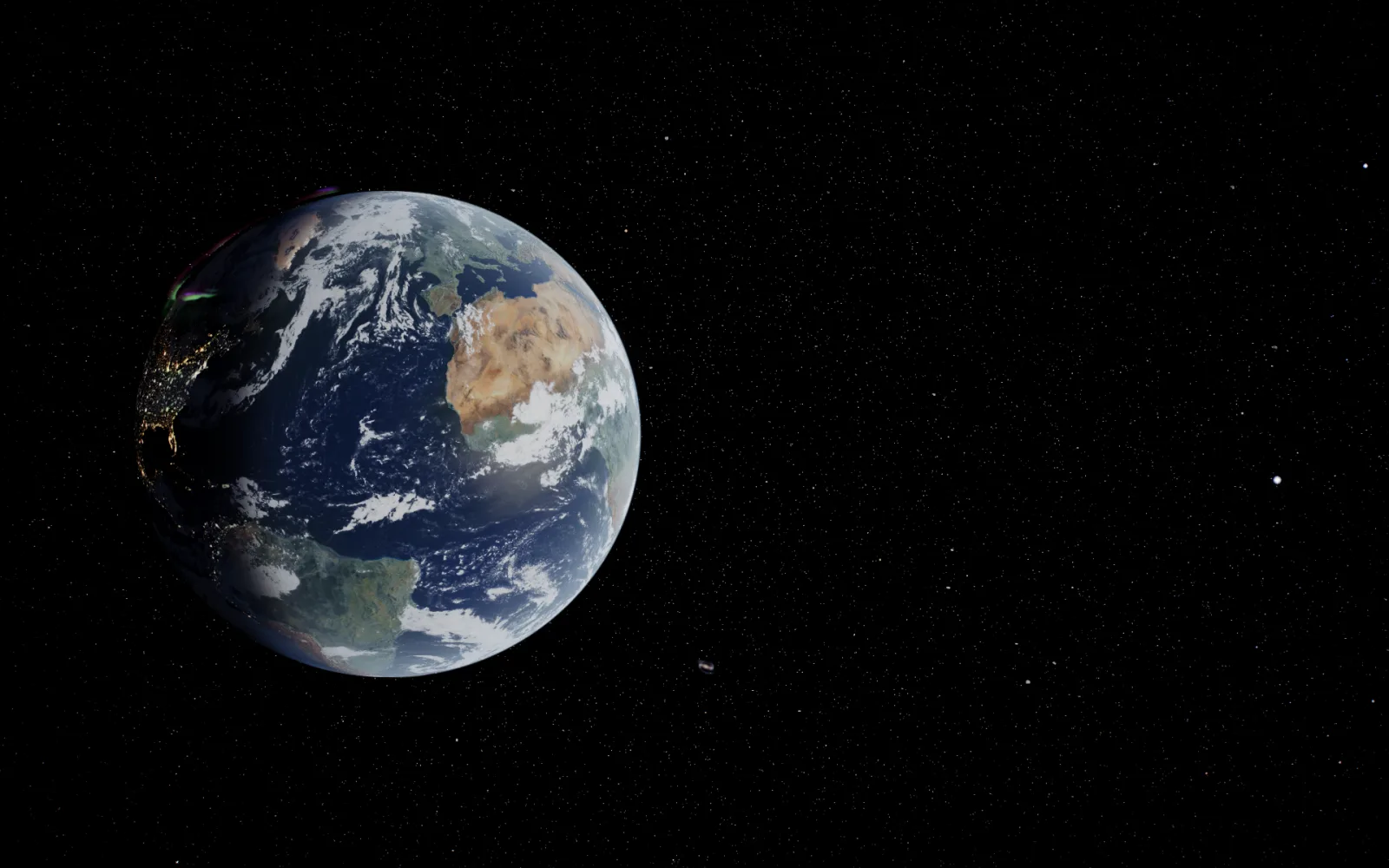
The screensaver only shows up when you walk away from your Mac, so you mostly miss it. Now the same engine runs as a live wallpaper: the Earth, Saturn, the Milky Way or any of the other shows, drawn live in 3D behind your desktop icons and lit by the Sun from wherever the Sun really is right now. There are over 80 of them, and it's $2.99 once on the live wallpaper page.
A wallpaper has a harder job than a screensaver, though. It runs all day underneath everything you're doing, so most of the work went into making it behave.
A window that lives under your icons
macOS has no setting of its own for animated wallpapers, so an app has to draw one. Mine is a small menu bar app, a globe up by the clock, and for each display it opens one borderless window at the desktop window level. That level sits above the system's own wallpaper and below Finder's icons and the Dock, which is exactly the gap a wallpaper needs. The window joins every Space, ignores the mouse so your clicks fall straight through to the desktop, and is never allowed to become the key window, so it can't steal focus from whatever you're typing into.
It also starts out invisible, at zero opacity so you keep seeing your normal wallpaper, until the page inside has finished loading and framed its first scene, then it fades in over a second and a half. And if WebKit's content process dies, from a GPU reset or memory pressure, the app just loads the show again, so you never come back to a blank desktop.
The whole web build, inside the app
What's drawn in that window is the same page the viewer runs, in screensaver mode with a wallpaper flag switched on. The app carries the web build inside its bundle and serves it under its own solarwallpaper:// scheme, through a copy of the scheme handler the Mac screensaver uses. Everything the shows need is in the bundle, so it runs offline, and the few files it doesn't carry, the ISS's latest orbit being the main one, come from the live site when there's a network.
Keeping it quiet all day
A planet behind your icons is lovely for about a minute if it makes the fans spin up, so the app hands the page a few settings, and they all exist to make it do less. There's a frame cap, 30 frames a second by default, and when the display refreshes in between, the page draws nothing and the screen keeps the last frame. There's a pixel budget too: the default quality, Balanced, draws at most about 4.2 million pixels a frame and lets the page scale them up. On a Retina laptop that's a quarter of the screen's pixels, on a 4K desktop about half, and behind a field of icons it's hard to tell apart. Light draws fewer still and drops the graphics preset to Medium for the least power. Sharp goes up to the screen's own resolution, capped at a ratio of 2. I found the budget the hard way: drawing every pixel of a 4K desktop thirty times a second took about 42% of the GPU on my own Mac.
Then it stops completely whenever nobody can see it. The app pauses the page when its window is covered by a full-screen app or by windows over the whole desktop, when the screens sleep, when the screen locks, when a screensaver starts and when you switch to another user. On battery or in Low Power Mode it drops to 15 frames a second, or pauses, whichever you pick in the menu. Resuming takes the paused time back out of the clock, so the camera carries on from where it was.
It also gets out of the way of games. When the app in front is a game (Mac apps say what kind of app they are, and games say so), the wallpaper pauses. Plenty of games and heavy apps never say, so it also watches how busy the GPU is, a figure macOS reports to any app. The catch is that the reading includes the wallpaper's own share, so the app learns its share from how far the reading moves whenever the show starts or stops. If something else keeps the GPU busy beyond that for six seconds, it pauses, and once the GPU has been quiet for ten seconds it carries on. I tested it by loading the GPU to 100% from a browser: the wallpaper paused, then came back by itself when the load stopped. There's a switch for it in the menu, and it's on by default.
One thing had to be switched off for that to work. A wallpaper app is never the active app, so WebKit would treat its page like a forgotten background tab and slow it right down. Its own throttling is off, and the pausing comes from what macOS says about the window, which is the one place that actually knows whether anyone can see it.
Planets off to one side
The screensaver frames every planet in the middle of the screen, which is exactly where your icons and windows want to be. So the wallpaper has two new views, Off to the left and Off to the right. The planet's center sits 42% of the way from the middle of the frame to its edge, the planet and its rings fill 56% of the frame's height, and the lit side faces the open space, so on the Earth the night side and its city lights end up along the outer edge.
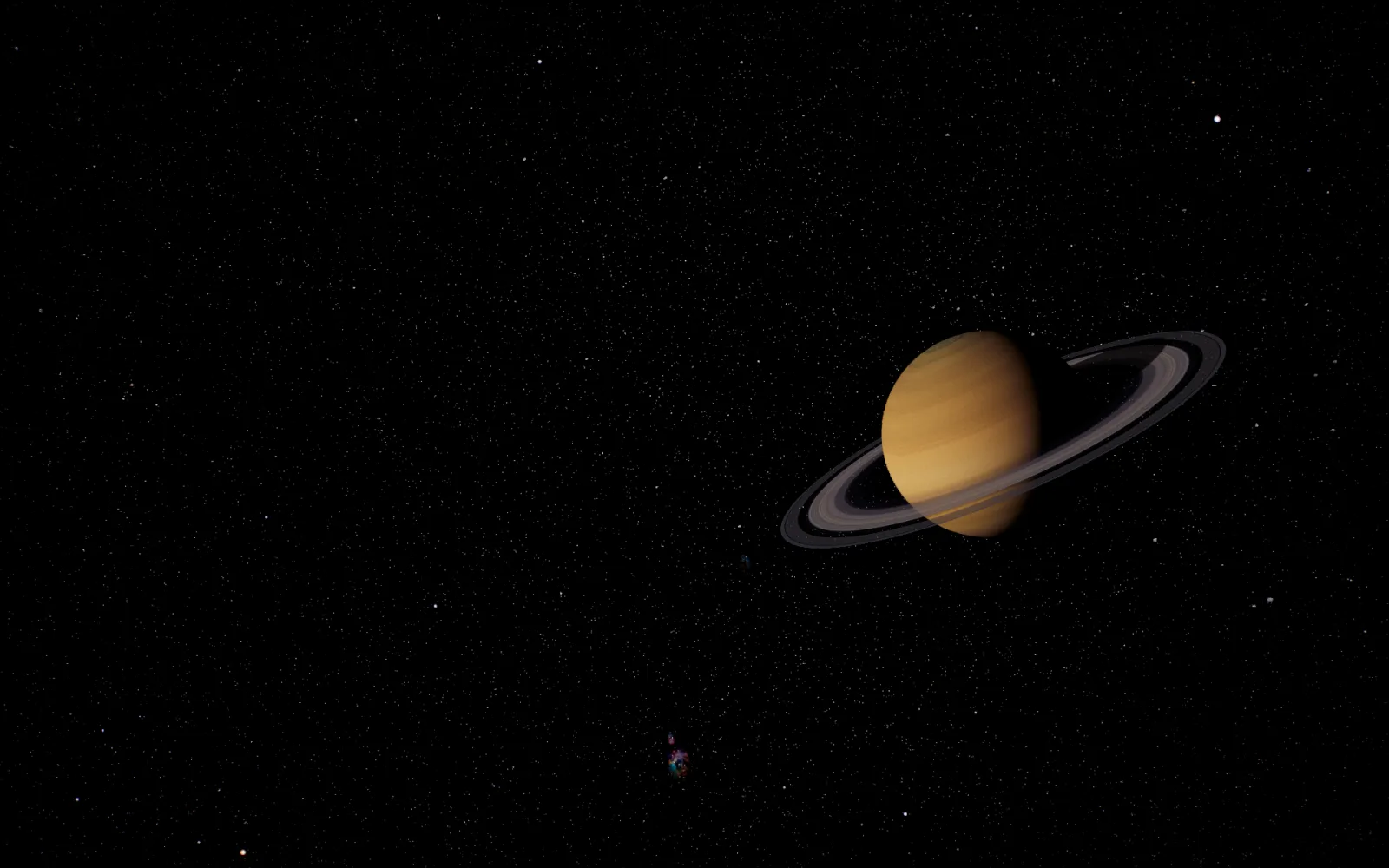
Getting the light right took one correction. To push the planet off center, the camera looks at a point beside it and moves sideways with that point. That sideways move also swings the camera a little way round the planet, toward the Sun. The phase you see, how much of the disc is lit, comes entirely from the angle between the Sun and the camera as seen from the planet, so the slide eats into it. Left alone, the planet comes out more lit than it was framed, and the night edge gets thinner. The fix is small: before the slide, the view turns on by exactly the angle the slide takes away, which is the arctangent of the offset over the distance, and the planet shows the phase it was framed with.
There's also a Zoom menu, Close, Medium or Far, which stands every planet view 1, 1.35 or 1.8 times further out, so the world sits smaller with more space round it.
Over 80 of them
There are eleven worlds, the Sun, the eight planets, the Moon and Pluto, each in up to eight views at three zoom levels. On top of those come the Milky Way, the black hole, the ISS from outside and from inside its Cupola, the famous space photos as live views, and the grand tour. Out of the box it shows the top half of the Earth filling the screen, and you change everything from the globe in the menu bar. It can play on every display, opens at login, and runs on macOS 12 Monterey or later, on Apple silicon or Intel.
This first release is signed but not yet notarized by Apple, so macOS asks you to confirm it once, the first time you open it, and the download page shows you how. A notarized build is coming as a free update.
Getting it
It's $2.99 once on the live wallpaper page, and until 12 November buying it gets you the Solar System screensaver free as well, for Mac, Windows and Linux. If you just want to see how it looks first, the Earth off to the left runs free in your browser.
The part I like most is the slow part. Each framing is placed against the Sun, and the Earth turns under it at its real rate, so the continents on your desktop at five in the afternoon are different ones from nine in the morning, and you never had to touch anything for that to happen.